
Starting with the version 1.2, NTLite has additional tools on the Source page to help you with the deployment.
The purpose of these wizards is to simplify common actions, in this case recovering or upgrading a lite install or installing updates on a live install.
Wizards are started from the Source page toolbar, in later versions the tab is called “Tools”:
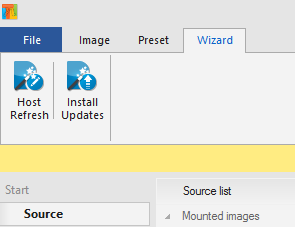
Install Updates wizard
To quickly install MSU and CAB updates on the host machine, simply open the Install updates wizard.
It will load C:\Windows as the target, and open only Updates page on the left, ready for updates insertion.
Use the toolbar to either add a single file or a folder full of updates. You can also drag and drop from the File Explorer.
After adding some updates will look like this:
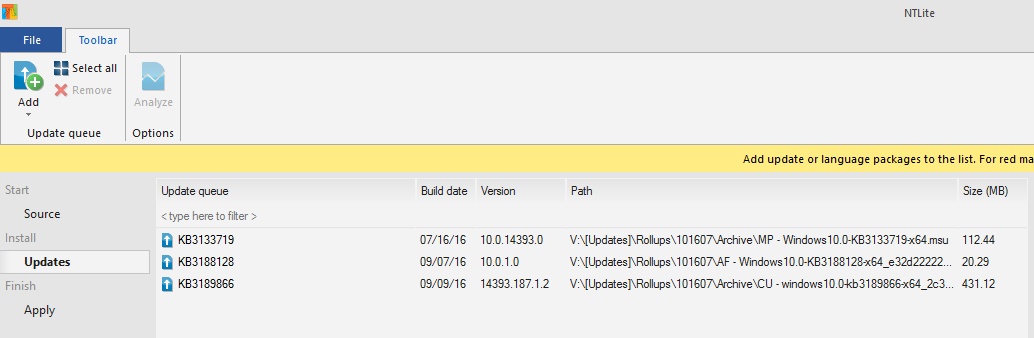
At this point it is always good to check if Analyze is enabled. It will be enabled if there are any recommendations or warnings about the current update queue.
When ready go to the Apply page and press Process.
That’s it when it comes to full Windows.
Now about updating the lite windows.
Host Refresh wizard
Installing updates can be straighforward using the wizard above, but the process may fail on a lite installation, due to missing update dependencies.
To simplify the process of updating a lite Windows, or to recover the installation in general, this wizard provides a quick and easy way to update each month without losing your applications and settings.
Once started it looks like this:

Select the full Windows 10 image, if you don’t have one, you can get it here.
Extract the ISO to some folder and select it with the Add button, or drop it to the Source page before starting this wizard.
Previous preset is optional, make sure to keep Prompt for adjustments enabled so you can change the image before it is applied to the system.
After pressing OK, it will look like you loaded the image normally, with all the options presented.
However in the background the tool protected needed components for the refresh and is waiting to start setup.exe after you’re done with the changes.
Also Unattended page is disabled as it is not necessary.
This is the time to add the cumulative updates, load other presets or do any changes you would like to do, same information about updates applies as with the previous wizard above.
Of course if you have the preset ready you could have just selected it on the wizard page and disable prompt for adjustment, that way single-click gets you all the way.
If you used prompt, when ready go to the Apply page and press Continue.
That is it, now it will take some time to process the changes and start the refresh.
Note that sometimes Windows refresh takes a while to start, it looks like sitting there doing nothing, but it will continue after some time.
If you get into any errors after the refresh has started, check this page for known issues and solutions.
More info on the documentation.
Let me know if you have suggestions for future wizards.
Thank you for your continued support.
